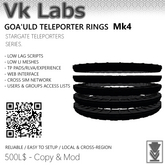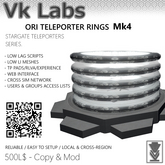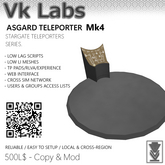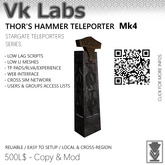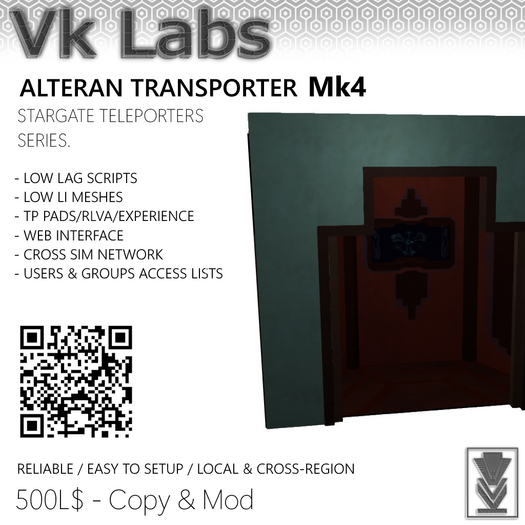

Hello, thanks for buying our products!
=============================================
NEW IN MARK 4 TELEPORTERS:
- GRID NETWORK: Teleport cross-sim to any other Vk Labs Teleporter anywhere on the grid.
Enable 'Grid Network' in the settings menu — a [GRID] option will appear in your
destination list. Works with RLVa and Experience; Experience is strongly recommended.
- WEB PORTAL: Manage and synchronize your teleporter settings and view statistics online
at https://portal.vk-labs.com
- ACCESS LISTS & GROUP KEYS: Restrict access to specific users (by name) or groups
(by UUID key) instead of relying solely on public or owner-only modes.
=============================================
LOCAL QUICK START
=============================================
1. Rez your teleporter. A first-run wizard will prompt you to set a name and network.
2. A "network" is a group of teleporters that can see each other. Only teleporters
sharing the same network name will appear as destinations. You can assign multiple
networks by separating names with commas.
3. Rez all your teleporters and allow up to a minute for them to sync. If a destination
is missing, verify that the network name matches exactly — it is case-sensitive.
You can also trigger an immediate sync from the Settings Menu (Force Sync).
4. Click the teleporter to use it. On most models, click anywhere on the object.
On the Alteran Transporter, use the touchscreen inside the cabin.
=============================================
SETTINGS MENU
=============================================
Long-press (hold click for more than 1 second) on the teleporter to open the Settings Menu.
> Mode — Switch between TP Pad, RLVa, and Experience teleportation.
> Skip Conf. — Enable or disable the confirmation prompt before teleporting.
> Privacy — Set who can use this teleporter: Public / Access List / Private (owner only).
> Allow List — Add or remove users from the access list. Once a user is listed, only
listed users and the owner can see and use this teleporter.
> Group Keys — Enter a group UUID to allow members of that group to use this teleporter.
> Grid Net — Toggle cross-sim Grid Network teleportation. If your privacy is set to
Public, consider restricting access to avoid unwanted arrivals.
> Toggle Lock — Lock the teleporter completely. It becomes unusable and disappears from
all destination lists until unlocked.
> Top Rezzer — (Goa'uld Rings only) Spawns a top rezzer so the rings descend from
above. Height is adjustable.
> Portal — Quick access to Portal web page or password resets.
=============================================
EXPERIENCE MODE SETUP
=============================================
To use Experience or Grid Network teleportation, you must allow the Vk Labs Experience
on your parcel:
1. Right-click your land and select About Land (or go to World > Parcel Details).
2. Click the Experiences tab.
3. Under Allowed Experiences, click Add.
4. Search for 'Vk Labs Systems' and select it.
5. Enable Experience mode in your teleporter's Settings Menu.
=============================================
GRID NETWORK MODE
=============================================
When Grid Network is enabled, your teleporter becomes visible to anyone on the grid who
also has Grid Network enabled — regardless of region or network name. Network names do
not filter grid destinations; the [GRID] list is global across all Vk Labs Teleporters.
To control who can arrive at your teleporter via Grid Network, use the Privacy setting:
set it to Access List or Private so that only authorised users can teleport in. Leaving
it on Public means any grid user can teleport directly to your location.
=============================================
More info: https://www.vk-labs.com/accessories/teleporters/
Have a great day!
Vala Avro.
Vk Labs 2026
- Teleport up to 5 persons
- RLVa/Experience compatible
- Intercompatible with others Vk Labs teleporters
- Cross-Sim network