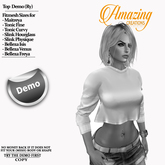


Try the free demo first to see how they fit on your body\shape.
The demo has a fabric that may not be the fabric of this pack & it does not have any of the Huds. The purpose of it is to view how it fits on your classic or mesh body & how your alpha hud fits this mesh item.
NO MONEY BACK IF IT DOES NOT FIT YOUR BODY\SHAPE\Alpha Hud.
================================
Most of the mesh clothes may need of you to edit your shape in order for them to fit on you even better.
=================================
I do not make the mesh item i buy them full perm and make fabrics and logos on them
=================================
It is not for classic avatars. It is only for the bellow mesh bodies
=================================
You are getting:
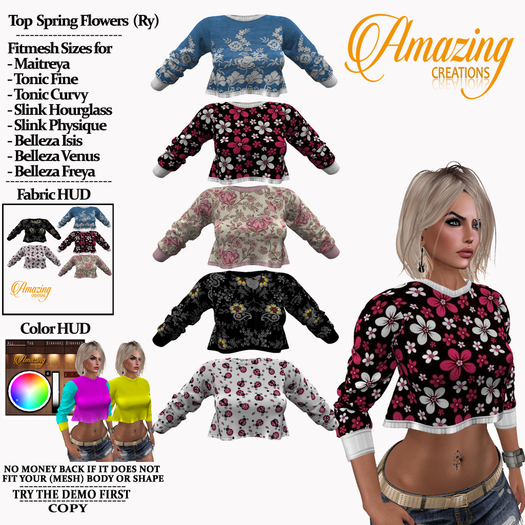
• 1 Color HUD: you can color it all in one color or you can color the sleeves in one color and the rest of it in another color.
• Fabric: Add it on you and then click the tops so they can go on your mesh item.
• Fitmesh Sizes for
- Maitreya
- Tonic Fine
- Tonic Curvy
- Slink Hourglass
- Slink Physique
- Belleza Isis
- Belleza Venus
- Belleza Freya
Write the key word (Ry) to my page (my marketplace page) to view all the available styles of this top.
=======================================
❇ About the Color Hud
=======================================
* When you use 'Add' to attach my color Hud/s to show up on your screen, it will give you a Message in local chat asking you to wait.
Example: 'Color Changer Hud-Elegant One Button Closed Front Slim Suit: Color Hud Script is Starting up, Please Wait...'
wait until it tells you that it is ready in order for you to be able to use it. Why does it do this? Its just how this particular Color Hud works.
Example: 'Color Changer Hud-Elegant One Button Closed Front Slim Suit: Ready.'
--------------------------------------------------------------------------------------------------------------
* If you click the letter 'R' button ('R'as in Reset) on the color hud, this will undo the color or colors you have added/changed and reset it back to the original color.
* If the fabric itself is not white on an item, the color Hud cannot make it white for you.
* Before you Click at the 'R' button, First click on the button of the face you want to undo the color on and then click the R to undo the color.
(Faces are the parts of the mesh item that you can color. Example: If my color hud has 'top + sleeves + collar'...Those 3 are different faces/parts. Some mesh items are made with many faces/part to color and texture differently and not only as one color or as one fabric)
* Some of my Color Huds have many buttons (buttons are the names on the color Hud. Example: top,all,skirt,back,pants etc.) and some only one. It's because the mesh item has many parts or its only one part all of it. Therefore, it depends on how the mesh item has been made.
* On the Color Hud there is a Sliding Bar near the 'R' button & when you have chosen a color, You may also choose to lighten or darken the shade you chose by either left clicking in the bar or by clicking & dragging in this Slider Bar up or down until your desired shade is reached.
* If you see a button saying 'ALL' or 'All', this button will apply the chosen color to the whole of the mesh item and it can be undone if you click it and then click the 'R' button. Not all of my color Huds have this button You will probably find it when they are many buttons on one Hud & not when the color Hud has only 1 button available to be used.
--------------------------------------------------------------------------------------------------------------
★ I hope you are able to understand the help instructions I have written and that they are helpful to you and they did not made your mind pop out :P
★ Thanks for buying from me & do not forget, if something is not working or if something is missing,
Please let me know so i can fix it! ☺