
OLD STUFF DISCOUNT - This is old stuff, but still working!
~~~~~~~~~~~~~~~~~~~~~~~~~~~~~~~~~~~
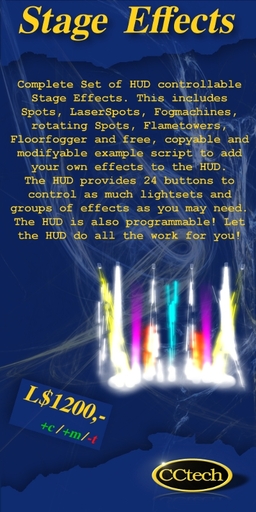
CCtech Stage Effects
The CCtech StageEffects is a package of high quality, low lag scripted effects that consists of A HUD and many different effects like spots, fog, flames, laser and more.
See an example video with many descriptions and explanations here:
http://www.youtube.com/watch?v=_AoKHDH-NNQ
Also see here an promotion video of a new grunge styled club house which uses these effects:
http://www.youtube.com/watch?v=HDgzqGsIvIs
Features:
- Many effects like spots, fog, flames, laser and more
- HUD included!
- automatic program for effects cycling
- Group effects to one channel or group different channels to one effect
- Example stage included with ready to go effects and auto program (See video above! 123 prims! rez-faux rezzbox)
- Free to copy scripts for your own effects
Description:
All effects are copy and modify, so you can add as many effects to your location as you want. You also can resize the spots or lasers. The HUD is also copy and modify.
Simply rezz an effect, edit it and add a button name (channel) from the HUD to the description field of the effect. Then you can controll this effect with the assign button in the HUD. You also can add a commata-separated list of button names to the description field to create different light styles on your stage, controllable with different buttons in the HUD.
To create a automatic program, simply edit the HUD, go to the contents tab and open the notecard "_automatic_program_". It already contains a small program with different channels and colors. You can use the following commands in this notecard, each on one single line:
B<n> - Where <n> can be a number from 1 to 24 for the 24 buttons of the HUD
ALL - To switch all buttons/channels with one command
PAUSE|<n> - Where <n> can be a float of seconds the auto program will wait until it calls the next command
The first command (B<n>) can also have on optional parameter which specifies the color, the effects should have. You can use some general color words like: red, green, blue, cyan, yellow, white. But you also can use the color vector to set the color.
For example:
B2|red - to set the color of channel 2 to red or
B2|<0.0, 1.0, 0.0> - to set the color of channel 2 to green
Simply see the already finished program notecard in the HUD.
ATTENTION:
There is an example effect included. This example effect simple is a light on a 0.5x0.5 cube. The interesting thing are the scripts in this object. Copy them to your inventory and create your own effects with these scripts! One of both scripts is modify. there you simple define what the effect has to do when it will be switched on or off, nothing more. The rest does the other script which is no modify. Both scripts has to be in the content of your new effect.
- OLD STUFF DISCOUNT - This is old stuff, but still working!
- OLD STUFF DISCOUNT - This is old stuff, but still working!
- OLD STUFF DISCOUNT - This is old stuff, but still working!
- OLD STUFF DISCOUNT - This is old stuff, but still working!
- OLD STUFF DISCOUNT - This is old stuff, but still working!

