



You MUST own SLink High feet, or a SLink High compatible mesh body to wear this product!
Test the free demo if unsure!
❀ NON-RIGGED MESH
❀ Copy perms
❀ Includes resizer
❀ Auto-unpack when worn - no need to rez
❀ Elegant shoes with platform wedge
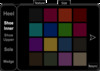
❀ 19 textures on 5 different areas - clickable menu or Optional HUD (Included)
❀ FTC / Full Texture Change
You need to wear your own SLink High feet, or SLink High compatible mesh body
◣◥◣◥◣◥◣◥◣◥ PERMISSIONS FOR PRODUCT: ◣◥◣◥◣◥◣◥◣◥
Shoes: Copy
Scripts within : Copy
The shoes are copy so that you can make a backup copy in your
inventory.
They are no modify, and designed for using on SLink compatible High feet (eg Tonic).
There is a re-sizer if you want to "tweak" their size for your mesh body, and even
though they are no modify, you can edit their position.
If you accidentally delete your item(s), or SL eats part of your inventory,
you can visit the store and use the CVend redelivery terminal
to get a fresh copy.
◣◥◣◥◣◥◣◥◣◥ TEXTURE CHANGE INSTRUCTIONS: ◣◥◣◥◣◥◣◥◣◥
There are 19 colour options, on 5 different areas.
Texture change may be done in one of two ways:
1) Click the items. Select "Appearance" in the popup, and select from the
options in the pop-up menu for the portion you wish to change. The "<Back>"
button can be used on each page of the pop-up menu to go back one stage.
2) Use the enclosed HUD
* First, wear your item
* Then, wear your HUD (Attaches to "Centre" of your screen by default)
- If you attach to a different place, you will likely need to right click - edit
and rotate to see the front face.
* Click "Texture"
* Then simply click the options you want to change.
If you are wearing multiple items from different product ranges of
Freya's Finest Jewels that are HUD supported, you will need to click
the pop-up menu to confirm which range you want to change first.
The "Resync" button will check the ranges you are wearing.
To select a different range, use the option in the pop-up menu.
Remember to right-click and "Detach" your HUD once you are done
making adjustments!
If changed via the HUD or pop-up, all items in that range will change together while the item is being worn.
The range for these items is "GraceAll"
◣◥◣◥◣◥◣◥◣◥ RE-SIZING INSTRUCTIONS: ◣◥◣◥◣◥◣◥◣◥
Be wearing BOTH shoes and click one of them. Either.-
Click one shoe, from the popup select "Size" and adjust as desired.
If using the HUD, click "Size" on the menu and adjust accordingly
◣◥◣◥◣◥◣◥◣◥ EXTRA TIPS: ◣◥◣◥◣◥◣◥◣◥
There is a pose stand included to allow you to perfect the fitting.
Remember, to wear more than one attachment at a specific attachment point,
right-click the item in your inventory, then select "Add to worn" from the
right-click menu.
By default the shoes are fitted to right & left foot
See item in Second Life


