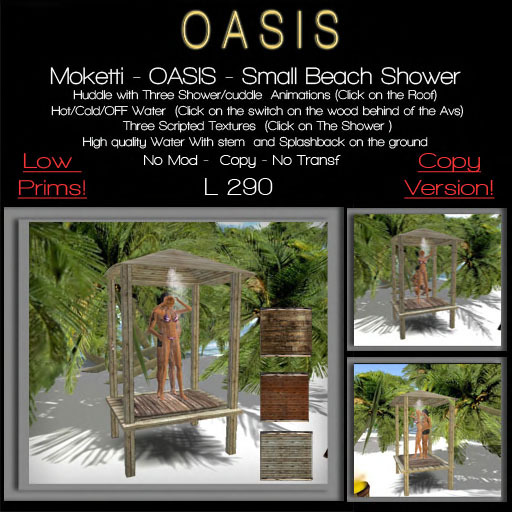

MOKETTI - OASIS - SMALL BEACH SHOWER
- 3 Couple animations shower/cuddle
- 3 Scripted wood Texture
- Scripted Water effetct Hot/Steam/Could Water
To change shower textures ..you have to click on the shower, a texture menu will appeare .
To switch Off the water effect ,click on the grey knob behind of the Avs on the wood support.
To witch Hot water , click on the gold knob behind of the Avs on the wood support.
To switch cold water , click on the purple knob behind of the Avs on the wood support.
To active the Shower huddle click on the roof.
SHOWER HUDDLE
Click on the roof to active the shower huddle menu.
OPERATION
- Click the Huddle object to switch it on
- When everything has loaded click again for the menu
- Select a submenu containing poses, poseballs will appear automatically
- Sit on your poseball (Right-click - LOVE)
- Select a pose, the animations will start
- To return to the default stand pose, select 'STAND'
- To remove the balls, select 'STOP'
- To switch-off, select "ShutDown" twice (but you can leave it on after use).
TO ADJUST POSITION
You can costumize the anims...placing them where you like ..on a chair,on a bed,on the gorund.....
Select a submenu containing the pose you want to adjust, sit on the balls and select the pose you want to adjust.
Go back to the main menu, select "Options - Adjust Pos", this way the balls are changed into transparant beams. Right-click a beam, select Edit to adjust the position (hold Shift to select both beams). You can position the balls anywhere within 10m from the huddle object.
"Save Pos" will store the position into memory.
TO ADJUST HEIGHT OFFSET (Z)
Select "Height Adj" and click the "Z"-buttons, this will adjust the height for all poses. (Note: the offset height is stored in the Object Description, so any descriptions will be replaced).
ACCESS TO THE MAIN MENU
The owner is the only one who can start/restart/shutdown, in all cases.
- if "Options - MenuUser" is set to OWNER: the owner is the only one who can access the menus
- if "Options - MenuUser" is set to ALL: anyone can access the MAIN MENU
- if "Options - MenuUser" is set to GROUP: members of the same Group as the MLP object can access the MAIN MENU (the huddle Group can set by right-clicking huddle and selecting Edit, More >> General tab - Group: Set)
Note: even if "MenuUser" is set to ALL or GROUP, individual SUBMENUS can still be blocked (you can define access for each submenu in .MENUITEMS, see examples in .MENUITEMS).
POSEBALL ACCESS
- if "Options - BallUsers" is set to ALL: anyone can sit on the ball
- if "Options - BallUsers" is set to GROUP: only groupmembers can sit on a poseball. The balls will check if the person who tries to sit on the ball belongs to the same Group as the ~ball object (to set the Group of the ball, take a new copy of the huddle)with your preferred Group set active on you. You could also take the ~ball out of the huddle, into the world, right-click, Edit, More >> General tab - Group: Set, thereafter take the edited ~ball into your Inventory (note: do this within a minute or so, because balls commit suicide after a while when taken into the world), delete the old ~ball in the huddle, and drag the new ~ball from your Inventory to the huddle).
- - 3 Couple animations shower/cuddle
- - 3 Scripted wood Texture
- - Scripted Water effetct Hot/Steam/Could Water
