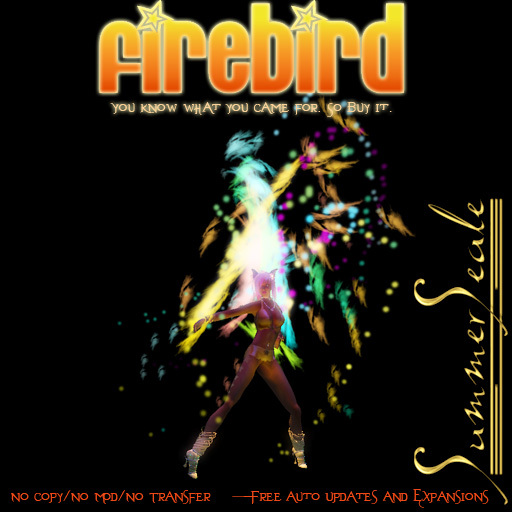

Dear Customer,
Thank you for purchasing the Firebird system.
Now you can seriously rock.
For planned updates and changes, see below.
-----
What is Firebird? Well, chances are you wouldn't have bought it if you didn't already know. But just in case you're one of those people who *hasn't* heard about it yet, Firebird is a dance particle system and poofer set (see below).
It works like this:
Wear it all: Hud, Right Hand, Left Hand, Right Upper Arm, Left Upper Arm.
Attachment points are listed in the names of the objects.
Make a copy of your HUD as a backup, so that you can get an update if you happen to lose the attachments by some disastrous asset server hiccup. Updates for you are free! That's right, free! FREE! as in *FREE!*
I hope that made you smile.
Shall we continue? Good.
Now that I have a smile on your face, and now that you're wearing the attachments and HUD, let's move on:
The HUD will rez at the top of your screen a bit to the right hand side. Feel free to move it around. Right now, it's just a button. It sure looks cool tho, doesn't it? If not, go take an art appreciation class. Plans are in the works for update this to a fully functioning HUD. For now, a button will do.
Next up: Click the button.
Not the petals, silly. The button. That's in the center. I got you there, didn't I? I'm so tricky.
Whoa! Where did that blue menu come from? Wow! Magic!
You can thank Ryder Spearmann for that. He rocks.
Okay, we have 4 buttons. The reason it's only 4 is because we kept the menu system simple so you can slam in some effects real fast.
BUTTONS:
All Off: Turns off all streams.
All On: Turns on all streams.
Left Hand: Controls left hand.
Right Hand: Controls right hand.
Controls for Right and Left are identical, so let's just document the right and you can figure out the left on your own (sorry lefties). If you're having trouble with this concept, copy/paste these instructions into a word processor, do a search/replace for Right and make it Left, and that might help you. =)
When you click on Right Hand, you will get the following buttons:
Enable: Brings up which stream to turn on (three are currently 5)
Set Color: Brings up the menu for which stream to set the color to after picking the stream - this will automatically turn on the stream before you pick the color.
Disable: Brings up the menu of streams, letting you choose which one to turn off.
When enabling/disabling streams on a hand, you will get a reuccuring pop-up on the stream list so you can turn them on or off quickly. It's practical. When you finished picking which streams to enable/disable, click ignore and it will go away. This is meant to be used very fast on stage or on the floor and you will see how practical this can be when you start using it.
When choosing a color, first you pick a stream, and then pick a color. You will not get a renewing pop-up from this action as this would be extremely vexing and annoying, and you would really hate me for that after seeing how fast we have made the other functions. And we don't want that, do we?
No we don't.
BTW, for the quick on/off multi windows, you can thank Ryder Spearmann again. He rocks. He truly does. BTW, he's really sexy too.
Please notice how smooth the transitions are in the color changes. Again, thank Ryder for this because he spent hours coding it with me testing it and giving feedback. He really rocks. Did I say that before? Well he does.
Turning on right hand will also turn on right arm.
That's about it for instructions. Really, it's that easy.
-----
Tips:
Random is beautiful, but so are color streams that stay a certain color for a while. A great effect is to random some streams and mix and match others. Some preset colors are given to you, more will be added soon.
Also, don't always use it on full blast. It hides your face too much all the time (sometimes it's great tho, trust me...play with it with different dances). But also, you want to vary things. You're dancing with light. It shouldn't always look like the sun is about to crash into you (which it can look like at times..and that's cool for a while). But sometimes soft is better. Feathers and Dots are my favorite, and I usually use the fractals to accent those.
-----
CHAT COMMANDS:
There are chat commands!
That means you can do more than just with a menu. It also means you can make gestures if you like for as many presets as you want and macro those.
They are the following:
RIGHT SIDE:
Dots: /222 on
/222 off
/222 color RGB Value (I.E. /222 color 255 128 50)
Fractals1: /223 on
/223 off
/223 color RGB Value (I.E. /222 color 255 128 50)
Fractals2: /224 on
/224 off
/224 color RGB Value (I.E. /222 color 255 128 50)
Feathers: /225 on
/225 off


