![[:AT:] ATLS2 Street Lamps](https://slm-assets.secondlife.com/assets/37770795/lightbox/AlchemyBeta_r6GmOQjnMn%20%28Marketplace%29.jpg?1763474060)
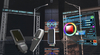
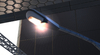
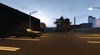
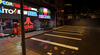
This light works with ATLS2 Lighting System, it is a very versatile and customisable system.
The API for this is included, in a seperate notecard.
This product requires a v7 or newer viewer, and HDR Emissive must be enabled in your graphics to see it's effects! It uses PBR Emissive technology to function!
*Street Lamps*
**************
Street lamps are 3 pieces linked together.
Light pole, horizontal light mast and a light at the end.
You can add any number of masts to the pole, so you can have 1, 2, 3 or even 4 going in all angles required!
You can also add these lights seperately without the pole.
You can retint the pole, using the included materials in inventory. Copy and modify one with a color tint, and drag it onto the white part of the pole, and the white part of the mast
The High Pressure Sodium Vapor Lamp takes a realistic ammount of time to warm up, and it will go through a realistic warm up phase with all the color and intensity changes.
Damage to the lamp will affect it's warm up efficiency, if too damaged, it will never reach optimal operating temp. See manual below how to repair them
Coloring the HPS lamp will simulate a tint to the bulb glass, so clashing colors like blues will be less efficient, as it's filtering out more of the emission of the lamp
*Setting lights up with switches*
****************************
Wear the ATLS2 Configurator HUD!
Rez a switch, click it's select button. This selects the light in the configurator hud
Apply a custom Light Group to the switch by clicking the Light Group on the HUD, then click the green Set Group button next to it.
Rez a light, select it with it's select button to select the light.
Configure the light's group the same way you did the switch.
These two entities are now grouped.
To configure the entire group of lights, you may checkmark the "To Group" option, and all your settings of color and intensity etc will apply to this lighting group.
You can shift drag your lights and switches and the group will remain applied to the new copies too!
*The four buttons on each ATLS2 Entity*
***************************************
Select | Access | Damage+ | Damage-
- Select Button sends the Select signal to the avatar that clicked it, if you are wearing the Configurator HUD, it will select on it and handle appropriately (Multiselect or Singleselect)
This is access regulated, if you don't have access you can't select it.
- Access button is owner only always, cycle this to change access. Red: Owner only, Yellow: Same Group only, Green: Everyone
- Damage buttons add damage or remove damage (repair) these are publically accessable when Damage is enabled on the lights, but only within 2 meters of radius within the light. Avatars have to be up close in arms reach to be able to interact with the damage buttons.
*Damage integration*
********************
When damage is enabled lights will be able to recieve damage and be repaired.
Each light type has different maximum hitpoints depending on their model and make.
Damage buttons on the light can be used to damage the light, or repair the light, only when standing within arm reach of the light.
This is intended for Roleplaying features.
Lights will also interact with LL Combat2 damage, ONLY When damage is enabled on the land they are on.
You can use negative damage of 101 type to repair lights.
Additionally refer to the API notecard on how to send link message damage (or repair) values to the lights with internal API.
You can use that to add your own custom combat system to the lights!
Damaged lights will spark, flicker, make noises, discolor, disrupt operations, in many various ways depending on their make, model, and representation of the functional technology used to create light.
Read more information in the product manual!
Second Life の商品を表示- PBR Materials
- ATLS2 Compatible
- Damage simulation
- Customisable light color, range, and more
- Light Switch Included

![[:AT:] Affiliate Vendors Pack (Boxed)](https://slm-assets.secondlife.com/assets/9731820/view_small/AT_Affiliate_Vendors_marketplace_image.jpg?1400972054)
![[:AT:] DLS](https://slm-assets.secondlife.com/assets/18393578/view_small/Marketplace.jpg?1505832991)
![[:AT:] ATLS Logic Gates](https://slm-assets.secondlife.com/assets/31917559/view_small/Marketplace.jpg?1659449896)
![[:AT:] ATLS2 LED Ceiling Light](https://slm-assets.secondlife.com/assets/36934198/view_small/AlchemyBeta_8CtONnJTIh%20%28Fit%201024x1024%29.jpg?1747744396)
![[:AT:] ATLS2 Fluorescent Lights](https://slm-assets.secondlife.com/assets/37059199/view_small/AlchemyBeta_Jqmg5I6WTn%20%28Marketplace%29.jpg?1750162860)
![[:AT:] ATLS2 Dimmer & RGB Controllers](https://slm-assets.secondlife.com/assets/37149686/view_small/AlchemyBeta_15ih3SJLK1%20%28Marketplace%29.jpg?1751973499)