❤AURELIA❤
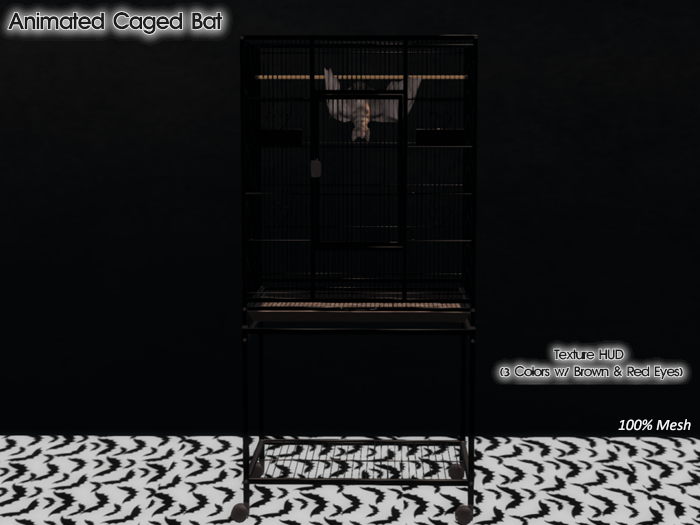
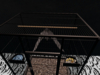
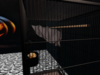
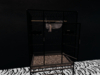
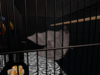
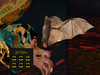
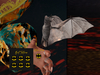
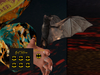
Animated 100% Mesh Bat & Cage.
Simply Use Edit To Drag & Drop Your Bat In Its Cage From Your Inventory.
** I WILL PLACE BELOW IN HOW TO USE THE EDIT FEATURE FOR NEWBIES **
Animations Are Automatic.
Comes With Animated Water & Food (Sliced Bananas & Mangos) Bowls. Cage Door Opens By Click (or Touch) & Closes Automatically. Simply Click On The Bat For Sound, (on/off) Resizing & Naming.
NOTICE: Cage Does Not Resize (ONLY BAT)
BAT HUD INFO
===================✎
Comes With 3 Textures & Two Eyes Colors.
Textures:
Brown
Gray
Black
Eye Colors:
Brown
Red
There Are 6 Bat Buttons For Textures.
**SEE EXAMPLES**
BAT WALKERS AND BENTO POSE ARE NOT INCLUDED WITH THIS PURCHASE!!
Click The Bat To Turn On/Off Sound & To See A Menu To Resize, Name, Renamed & Unnamed It. Menu Also Comes With Color Choices For The Name Titler.
You Must Click Okay To Save Name Titler.
Click On " □ Show "To Have It Nameless (This Completely Removes The Name).
✔️Copy
✔️Modify
HOW TO USE EDIT FOR NEWBIES
===================================✎
First, Make Sure You Have Permission To Modify In Order To Edit An Object. "Not All Creators Allow This Option". ** Tip: ONLY Purchase Copy & Modify Items!
=======================================
✎ ✎ ✎ ✎ ✎ ✎ ✎ ✎ ✎ ✎ ✎ ✎ ✎ ✎ ✎ ✎ ✎ ✎ ✎ ✎ ✎ ✎
=======================================
BASIC UNDERSTANDING: HOW TO EDIT?
==============✎
Moving:
Right-click an object and select Edit. This opens the Build window to the Object tab.
Choose Move to enable the Position function.
Click and drag the red/green/blue axes on an object to move it around.
Clicking on the red (X), green (Y), and blue (Z) arrows lets you drag the object only along those axes.
Rotating:
Right-click an object and select Edit.
Choose Rotate in the Build window to bring up the rotation sphere.
Click and drag anywhere within the sphere to rotate the object freely along all three axes.
Click and drag a specific ring (red/green/blue) to rotate the object only around that axis.
Resizing:
Right-click an object and select Edit.
Choose Stretch from the Build window to bring up the sizing box.
Click and drag one of the white corner boxes to scale the entire object proportionally.
Click and drag a red, green or blue box to re-size a prim's length, width or height (respectively) without changing the other dimensions.
If the Stretch Both Sides option is checked, the object's opposite corner moves in the opposite direction. If Stretch Both Sides is unchecked, the opposite corner remains in place.
If the Stretch Textures option is checked, the object's textures are proportionally resized together with the object. If unchecked, the textures retain their original size. This means that if you are increasing the object's size, the textures repeat rather than stretching to fill the additional area. If you are downsizing, you will see only as much of the original texture as fits on the smaller object.
More Info Can Be Found Here:
https://wiki.secondlife.com/wiki/Building_Tools
