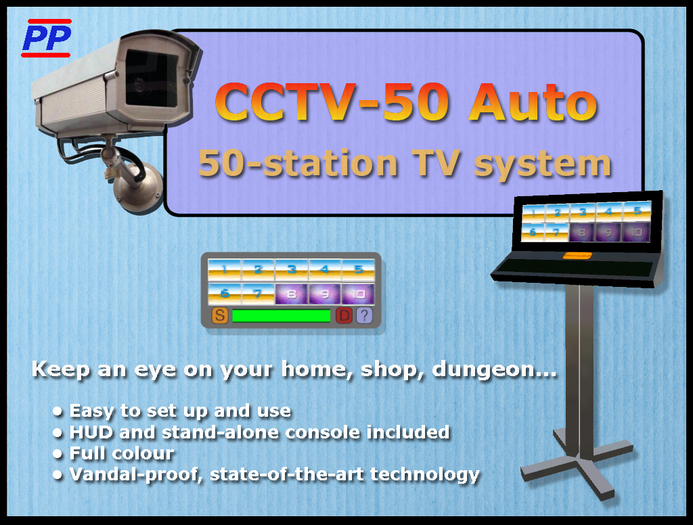

CCTV-50 Auto
===========
Keep an eye on what's going on in your sim, shop, house, dungeon... all at the touch of a button. With the CCTV-50 Auto you can set up virtual 'TV cameras' wherever you want in the sim, and 'look through' them from wherever you've placed the console, or from anywhere in the sim by using the HUD.
Up to 50 different views can be stored - 40 on the console, and another 10 on the HUD (these can include the same ones as on the console, or completely different ones. And when you look through a camera, you can click on things you see, as if you were actually there.
There are 4 banks of screens - each holding 10 views. The Bank selection is automatic, but may be changed manually if required. Use one bank per sim, or multiple banks for one sim.
Cameras are simplicity itself to set up - just 'cam' around as you normally do until you have the view you want, and then click to store it on one of the HUD screens. These can then easily be downloaded to the console, and viewed from there. To look through a camera, just click one of the screens.
CCTV GUIDE
---------------
HUD
===
The first time you attach the CCTV, the HUD will appear in the centre of your screen. Position it where you want it, and click the small square to the right of the HUD. now you can show or hide the HUD by clicking this square.
BANK SELECTOR BUTTONS:
When you move to a different sim, the red Bank buttons will automatically change to views you have loaded in that sim. If you're visiting a sim for the first time, the first available Bank button will be selected. You may, however, select these buttons manually if required.
SETTING VIEWS:
1. Cam around until you have the view you want.
2. Click the Orange S button (Save).
3. Click one of the 10 screens to save view to that screen.
4. Press your Escape Key.
VIEWING:
1. Press your Escape key.
2. Click one of the 10 screens that has been saved with a view.
3. Click the green bar, or press your Page Down key to return.
SCAN:
1. Press your Escape key.
1. Clicking the small yellow circular button will start a single cycle through all set views in the current Bank button. The cycle may be stopped at any time by clicking the green bar, and the dwell time of the views may be set by clicking the "?" button.
DELETING VIEWS:
1. Press your Escape key.
2. View the screen you wish to delete.
3. Click the D button (Delete).
4. Confirm in the dialog.
The "?" button will present a dialog from which you can either set the Scan dwell time, or obtain a short version of this note.
CONSOLE
======
One bank of views captured with the HUD may be downloaded to the console and viewed from it. Once this is done, you may change the views on the HUD to different ones if required, so that you can have up to 50 different views in total - 40 on the HUD, and another 10 on the console.
DOWNLOADING FROM THE HUD:
1. Press your Escape key.
2. Click on the console. Your view will change to a close-up of the unit.
3. Make sure you're wearing the CCTV Auto HUD.
4. If required, select the Bank button which contains the views you wish to download. (Note: only views captured in the same sim as the Console will be viewable.)
5. Click the orange 'Download' button on the console to download the views and also keep them on the HUD - OR - click the blue 'Download and Clear' button to download the views and erase them from the HUD.
VIEWING:
1. Press your Escape key.
2. Click on the console. Your view will change to a close-up of the unit.
3. Click a lit screen to see its view.
Use your left/right arrow keys to cycle through views. Your Down arrow or Page Down keys will return you to normal.
The unit may only be used by the owner - nobody else will be able to see your views.
Veja o item no Second Life- HUD hides when not in use
- Easy to set up and use
- Single-click viewing
- Use just the HUD, just the console, or both
- Automatic Sim recognition
