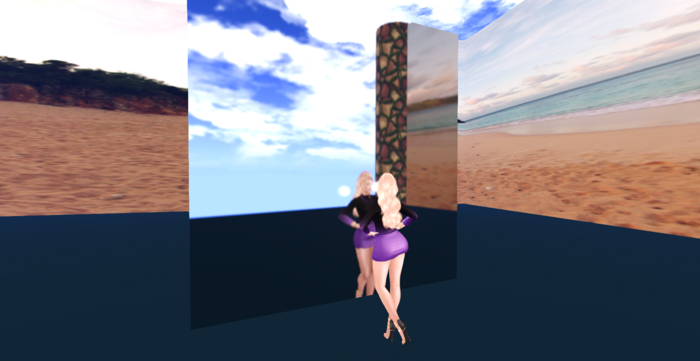
A PBR (Physically Based Rendering) viewer is necessary to see the mirror's reflection. The final appearance will depend on your individual viewer settings and lighting conditions.
Important: This version features an advanced high-resolution mirror. Ensure the mirror function is enabled in your graphics preferences:
1. Open Preferences.
2. Select Graphics.
3. Verify the settings for mirror, resolution, and update rate.
4. Confirm by selecting OK.
So, to view the reflection in your newly purchased mirror object, please follow these instructions:
1. Access Preferences:
- Navigate to Graphics Settings.
- Go to the General tab.
2. Enable Mirror Functionality:
- Find the Shading options.
- Check the box for Mirror.
3. Configure Mirror Resolution:
- Set the Mirror Resolution to 512.
4. Adjust Mirror Update Frequency:
- Change the Mirror Update Rate to Every Frame.
Proper configuration of these settings will ensure optimal performance and visual quality of your mirror.
Ver el artículo en Second Life

Exactly what I needed
Simple, just rez and go (with your mirror settings turned on). Really amped up the photo I used it in!
nice and affordable
Great mirror nice and affordable for a high quality item
helpful instructions, good mirror
the mirror works exactly as advertised, and the instructions on the store page helped me figure out how to make pbr work

