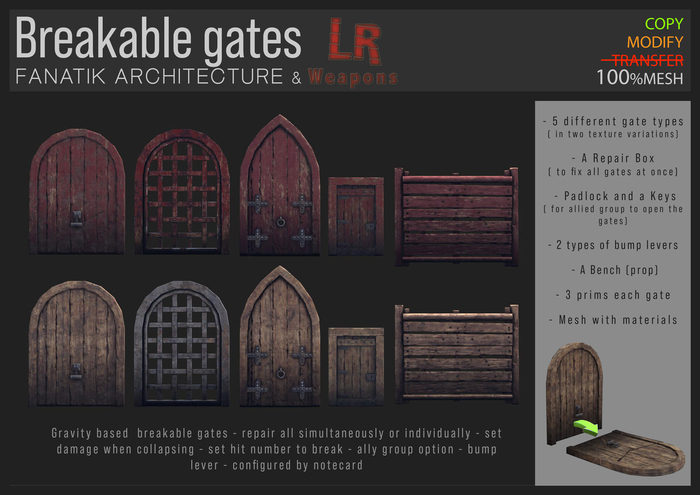

Gravity-based breakable gates/ doors will break and fall when shot at by a collision weapon.
Package includes:
- 5 different gate types ( 2 textures)
- Repair Box , Padlock and a Box with Keys
- 2 types of bump levers
- A Bench prop
- 2 Basic wall shapes
● WARNING
1- These gates work based on physics, they will act and fall due to gravity, meaning other meshes physics placed close might influence the way the gates behave when falling.
2- Rez your gates in a flat area and make sure the prims or meshes physics (next side to the gates) are not intersecting the gate's frames
3- Pay attention to mesh grounds, many of those generally aren't flat and do not have an accurate physics shape, so without you noticing your gate might be stuck after collapsing.
● START
1 - Place the gate where you want, according to your build. The green arrow displays the direction the gate will fall.
2 - Click the Green Arrow for the pop-up menu where you will be able to resize the gate.
3 - When on the place and resized, choose "Done" to record the gate's position.
4 - IMPORTANT: assign a unique name to each gate, up to 24 characters.
5 - Configure the internal notecard "Settings".
6 - Be sure the gate is assigned to your group, so all members can manage it.
7 - Shoot at it until it breaks to see what happens!
8 - Rez the "RepairBox" in a safe place.
9 - Additionally you can rez a Bumper and associate it with the gate.
10 - Additionally you can rez the "Second Group" items.
OBS: You can rez many gates (max 12). For each gate, repeat steps 1 to 7, and assign unique names to each one.
● GRAVITY FEATURE
This gate system is "gravity-based"-when it's broken, its behavior is not predictable. The way it falls will depend on any obstacles found, including avatars. Make sure there are no obstacles preventing it from falling.
● NOTECARD SETTINGS
In the gate's content, the notecard "Settings" allows you to customize the behavior of the gate. After saving the notecard, the script is reset, and the new settings appear in chat.
- HIT NUMBERS - Number of hit collisions necessary to destroy the gate (integer value)
- REPAIR TIME - Time (in seconds) necessary to repair the gate (integer value)
- CLICK RANGE - Distance (in meters) within which the gate can be opened with one click (float value)
- AUTOCLOSE DELAY - Time (in seconds) before the gate closes automatically (float value)
- ENABLE DAMAGE - The gate will cause damage if it hits someone
- % DAMAGE - How much damage caused when falling
- HINGE SIDE - Side used as a hinge for opening
- SPEED - time to open the gate
- ALLOW LOOP - door always opens when colliding with an avatar without waiting for the avatar to move away.
● MANAGE THE BUMPERS
The box includes 2 types of bumpers that can be rezzed everywhere to open or close the associated gate by bumping it. We suggest you set up all gates first, before managing the Bumpers.
To set a Bumper:
1 - Rez the Bumper.
2 - After a couple of seconds a menu pops out with the available gates.
3 - Select the gate you want to associate with the Bumper.
4 - Done.
Important Note: MAKE SURE your gates have unique names!
Bumpers can be managed only by members of the group they were rezzed under (or a second group if configured).
When a bumper opens the gate, and click on it is disabled, and only another bump (or the RepairBox) can close it.
● ADD A SECOND GROUP
You can add a second group to manage the gates and bumpers.
To configure a second group:
1 - Activate your main group
2 - Rez in a safe place "Padlock (root)" and, next to it, "Box with Keys (child)"
3 - Edit "Box with Keys (child)" and assign it to the second group (to assign a group, in the edit mode window go to the "General" tab and choose the group 6th option starting from the top)
4 - Without exiting edit mode, hold down the Ctrl key and select the "Padlock (root)". The result is both prims are selected
5 - Press "Link"
6 - Done
IMPORTANT! When an avatar wears the second group tag, it may take a few seconds for the managing abilities to take effect.
● HOW TO REPAIR THE GATES
Each member of the group (or second group if configured) can repair the gates. When it's broken on the ground, climb over the gate and click on it: the repairing process starts. If you walk away during the repair, the repairing process stops.
● DAMAGE
If enabled, the gate causes damage if it falls on an avatar's head. Sim owner can set the damage to 40%, 35%, or 25%. When collapsing, the gates will cause damage for 4 seconds. Any avatar wearing a meter will get damage if hit.
● REPAIR BOX
The RepairBox allows restoring all the gates and bumpers in the sim: the broken gates will be repaired and restored at their original positions, and the open g
See item in Second Life- 100 % mesh with materials
- Damage by collision weapon
- Ally group option
