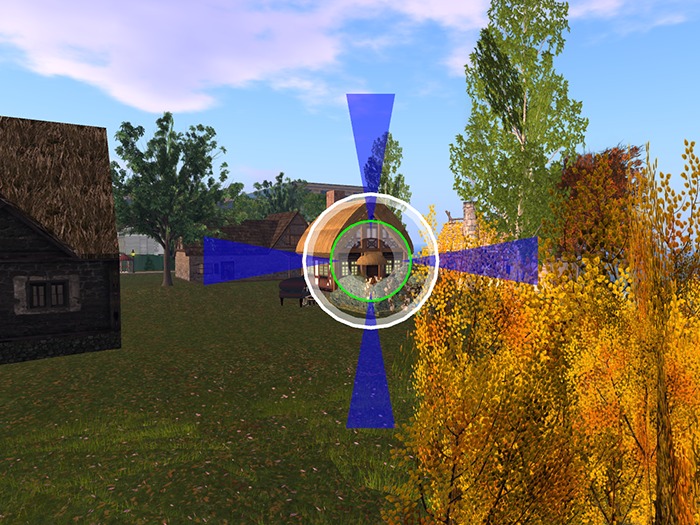

Mouselook crosshairs can be hard to see, especially against a light background. They are TINY. Magnum Crosshairs to the rescue!
Attach your new Magnum Crosshairs by double clicking on them in Inventory or by selecting them (right click) in Inventory and choosing WEAR. The Magnum Crosshairs will attach automatically to your Center HUD attachment point, but the icon to activate them should appear initially on the left side of your screen. You may move the icon at any time, but DO NOT attach the HUD at a different attachment point, or it will not work properly.
To move the icon: Left click on it and HOLD for a couple of seconds. When you release the mouse button, you will see an dialog menu for moving the icon Up, Down, Left, or Right on the screen. Click the buttons until the icon is where you want it and then click "Done". The icon will remember where you put it, even after you detach it later.
To use the crosshairs: The inner ring on the icon is RED when your Magnum Crosshairs are deactivated. To activate them, left click on the icon. The inner ring will turn GREEN. When you enter mouselook, the crosshairs will expand to full size and move to the center of your screen, focused on your tiny mouselook crosshairs. When you leave mouselook, the crosshairs will shrink again. You may left click the icon to deactivate the Magnum Crosshairs and turn the inner ring RED again.
While you are in mouselook: If you left click on whatever is at the crosshair position, the name of the object or person you have clicked on will appear in chat, as well as the distance to that object or person. This will work for any target you select within 256m. (In fact, as long as the HUD is attached, the range finding function will work even if you have switched the expanding crosshairs OFF and are using the default mouselook crosshairs. )
(Special Note: Information about the target is also broadcast region-wide on channel -668375. If you have a script capable of listening on that channel, you will hear a string in the format
Object_key|Range|Root_Position|Object_Rotation ,
where Object_key is the UUID of the target's root prim, Range is the distance to the target point, Root_Position is the object's global position, and Object_Rotation is the object's global rotation. You can parse the string and convert any of those values for use in other scripted devices.)
