Scriptease Multi-Light System – Controller + Receiver
Bring professional lighting control to your Second Life builds. With this system, you can create a single light, multiple lights, or entire multi-room setups. The power comes from separating the Controller Script (the switch/button) and the Receiver Script (the actual light). This allows you to build custom control panels, independent light zones, or complex club lighting systems with ease.
Unlike a simple “light-on/light-off” script, this system allows you to organize lights into groups or sets. Each group can be assigned its own control channel, meaning you can have one button control your Living Room, another button control your Kitchen, another for a Stage, and so on. All it takes is setting a matching channel number in the prim’s description.
This makes the system highly flexible:
A single controller can manage a single light.
A single controller can also manage an entire linked set of lights.
Multiple controllers can be built into a custom panel (each button is a prim with its own controller).
Each set of lights responds only to the controller with the same channel number.
Whether you are lighting a home, club, store, gallery, or venue, this system gives you total control with easy setup.
USER GUIDE – STEP BY STEP
Step 1: Understanding the parts
Controller Script = This is the button or switch you touch. It sends commands to lights.
Receiver Script = This is placed inside any prim you want to glow or act as a light source. It listens to the controller and applies the light settings.
Step 2: Assigning a channel
Each controller communicates on a channel. The channel number is taken from the prim description.
Edit your controller prim, go to the “General” tab, and type a number (for example: -1766) into the Description field. Negative numbers are recommended.
Do the same for all Receiver prims (the lights) you want this controller to manage. They must have the exact same number in their Description field.
Step 3: Dropping scripts
Drop the Controller Script into the prim you want to use as the button.
Drop the Receiver Script into the prims you want to act as lights.
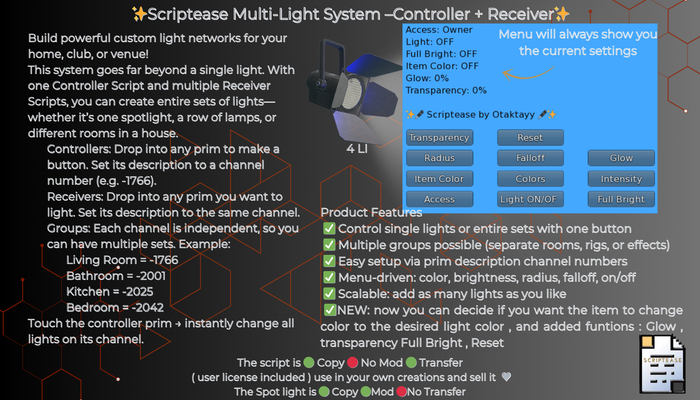
Now, whenever you click the controller prim, it will bring up a menu that lets you turn the lights ON/OFF, change Color, Intensity, Radius, and Falloff.
Step 4: Creating multiple groups
To make a second set of lights with its own controller, simply repeat the process but choose a different channel number (for example, -2001).
Set the new controller prim description to -2001, and set the description of all lights you want it to control to -2001 as well.
Now you can build multi-room or multi-zone lighting, each with independent control.
Step 5: Building a control panel
You can link multiple controller prims together to form a switchboard or panel.
Each prim in the linked object can hold a Controller Script and its own unique description number.
Example: Button 1 controls channel -1766 (Living Room), Button 2 controls channel -2001 (Kitchen), Button 3 controls channel -2050 (Club Stage).
Each button will only control the lights with the same channel number, giving you a fully functional multi-zone lighting system.
Tips for best results
Always check that the controller prim description matches the receiver prim descriptions. If they do not match, they will not communicate.
Use negative numbers to avoid conflicts with chat commands.
You can copy controllers and receivers as needed to expand your system.
Each controller menu gives you instant adjustments for brightness, range, and color.
License Agreement
LICENSE AGREEMENT
Scriptease Multi-Light System – Controller + Receiver – License Agreement
Copyright © Scriptease by Otaktayy, 2025
License Type: Copy & Transfer
Permitted Uses:
✅ You may include this script in your own creations for sale or distribution.
✅ You may copy this script for backup purposes.
✅ You may transfer this script along with an object you created, provided the object is your creation.
Restrictions:
❌ You may not modify this license or remove copyright notices.
❌ You may not distribute this script separately from your object.
❌ The script itself must be set to No Transfer before giving or selling your object to others.
Support & Contact:
For questions, updates, or support, contact: Otaktayy
NEW
Submenus: Glow & Transparency with 0–100% options.
Smart Menus: Submenus reopen automatically for easy testing.
Visual Toggles: Item Color (cube matches light) & Full Bright.
Expanded Colors: 3 pages of color choices.
Access Control: Owner, Group, or Public modes.
Reset: One-touch button to restore factory defaults.
Status Display: Live settings shown in the menu.
See item in Second Life- Control single lights or entire light groups with one system.
- Create multiple zones (rooms, areas) using simple channel numbers.
- Easy setup: drop script + set prim description, no complex config.
- Touch menu controls color, intensity, radius, and falloff.
- Works in homes, clubs, stores, or events – fully Copy & Transfer.


5 stars!
I really enjoy using this system for customizing my favorite lamps and making them usable in world! Highly recommend if you want a HUD-less light system. The owner was also really timely with responding to my notecard asking for assistance.