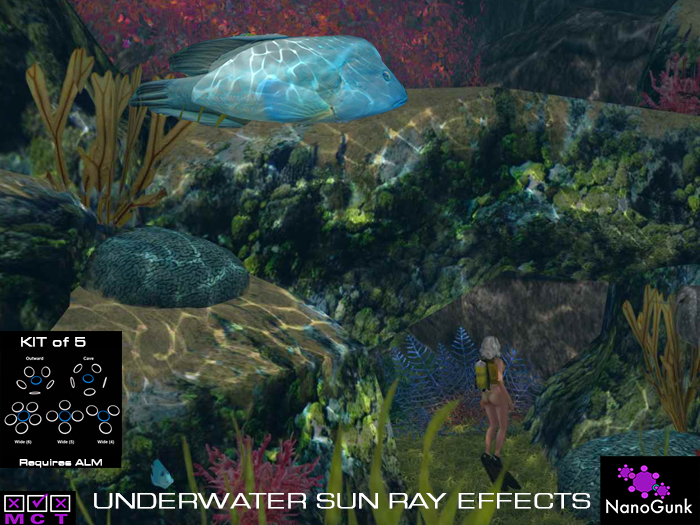
There are 5 Underwater Sun Rays Effects Objects supplied in the kit:
Wide Area - the sun rays cover a flat wide area - there are a 6, 5 and 4 effect versions.
Outward - the sun rays face more outward to cover sloped sea floors.
Cave - the sun rays shine more horizontal like you need in a cave.
QUICK START
❶ Rez an Underwater Sun Ray Effects object on the sea floor while in EDIT MODE
❷ Edit Move the position UP & down of the object while observing the sun rays coverage
❸ TOUCH / CLICK the BLUE center part to get the menu. Select [Start] ↺ to see the sun ray effects and explore the menu settings to get the best looking effects. Also adjust height of the object. When you are satisfied choose [Finish] to finalize the object.
Note: you only get the [Finish] option while it is rotating.
◣◥◣◥◣◥◣◥◣◥◣◥◣◥◣◥◣◥◣◥◣◥◣◥◣◥◣◥◣◥◣◥◣◥◣◥◣◥◣◥◣◥◣◥◣◥◣◥◣◥◣◥◣◥◣◥◣◥◣
The options you can set are:
Radius - how spread out the sun rays coverage is.
Wobble - on/off - this wobbles the sun rays which can look very nice in uneven areas.
Rotation - how fast the sun rays move. The 5 speeds are in a range of natural effects.
Intensity - how bright the sun rays are. Options are 'Lower, Default, Max'
When you select [Start] ... all the red outer objects become invisible so you can explore the settings without being distracted. The menu will timeout after 10 minutes, after timeout click the blue center for the menu.
Experiment with the height of the object, this will have a large effect, as well as play with the radius settings.
Each Underwater Sun Ray Effects object should be kept below the water surface if you wish not to see sun rays on top of the water.
PLEASE do Finish and Finalize - this will lock in the current settings and remove scripts that are no longer needed. It will also make the blue center invisible.
Do we need to say this? YOU MUST have ALM (Advanced Lighting Model) turned on in Preferences > Graphics > General
In-world store has a lower price.
Click the Video Link below ...
.
