
----------------
INCLUDED:
----------------
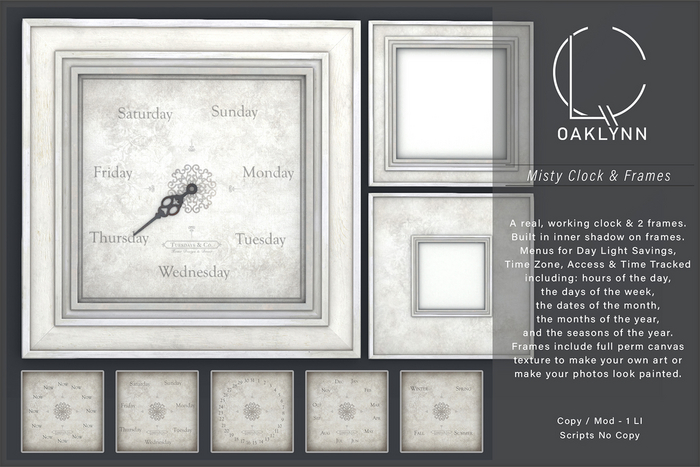
1 Clock
2 Frames
1 Info Notecard
-----------------
FEATURES:
-----------------
Real working clock.
5 Time settings.
Day Light Savings On/Off.
Set your time zone.
Set access level.
Tintable back shadows.
Tintable inner shadows on frames.
Only 1 land impact.
---------------------
DESCRIPTION:
---------------------
The Misty Clock has several options you can change:
1. Access Level
2. The time unit shown.
3. The time zone.
4. Day light savings on/off.
There are 5 different time intervals you can track:
The hours of the day,
the days of the week,
the dates of the month,
the months of the year,
and the seasons.
-----------------
THE MENU:
-----------------
ACCESS: This menu allows you to set who has access to the menu to change your clock. Owner - will allow only you to change it. Group - will allow only those who are in the same group as the clock to change it. All - will allow anyone to access the menu and make changes. (Note) Only the owner will see the Access Button. It will not be visible to anyone else, thus no one else will be able to change the access level.
TIME: This menu will take you to a sub-menu that will allow you to change what time interval the clock tracks.
Hour - will track hours of the day like a normal clock.
Day - will track days of the week.
Date - will track the dates of the month. Either 28, 29, 30, or 31.
Month - will track months of the year: Jan - Dec.
Season - will track the 4 season: Winter, Spring, Summer & Fall.
TIME ZONE: Takes you to a sub-menu where you set your time zone.
DL SAVINGS: Will give you the option to turn DLS either On or Off.
----------------------------
TIME ZONES & DLS:
----------------------------
The time zone button will take you to a series of menus where you can set your time zone. The clock is based on UTC time. All you have to do is simply select the number of hours your time zone differs from UTC. Navigate the menu forward and back until you find the number you are looking for, then select "BACK" to return to the main menu.
If the time is not correct, and your time zone recognizes Day Light Savings, you may need to turn that setting on or off depending on what time of the year it is. You can turn it on or off in the DL Savings menu. Simply select "DLS On" or "DLS Off" from the menu. Go back to the main menu to change the Time Increment you wish to show.
NOTE:
We've included as many time zone options as possible. If yours is not shown, please let me know.
-----------------------------------------------
SETTING THE TIME INCREMENT:
-----------------------------------------------
Setting the time you want to track is easy, just click one of the 5 options in the "TIME" menu: Seasons, Months, Days, Dates, or Hours.
If you set up your clock to show one time increment, selecting another time increment will change the face to that texture of the new time increment.
Whenever you change the time unit, the clock will self adjust and the hand will snap to indicate the correct time.
----------------------------------
HOW TIME IS TRACKED:
----------------------------------
Obviously the hand will move differently for each of the 5 time increments, but the way the hand tracks time is scripted to be user friendly, using common sense instead of having them all move fluidly like a normal clock.
HOUR: Are tracked like any clock. Although there is only one hand, it will move smoothly around the face, simulating the hour hand (or little hand).
DAY: This time increment shows days of the week. The hand movement is not fluid for this setting. There is nothing between, Tuesday & Wednesday, for example. It is either Tuesday or it is Wednesday. Thus the hand will alway point directly at the day of the week, snapping to the next one at midnight.
DATE: Depending on the month, the face will show either 28, 29, 30 or 31 days. The hand will snap from one date to the next at midnight. The clock will track leap years.
MONTH: This shows the 12 months of the year. Like the Days setting, there are no in betweens. It is either April or May. The hand will snap from one month to the next, always showing you the exact month.
SEASONS: This shows the 4 seasons: Spring, Summer, Fall & Winter. On this setting the hand will move fluidly from one season to the next. If it didn't, the hand would move only 4 times a year. It seems more practical to have it move fluidly.
---------------------
THE SHADOW:
---------------------
The back shadow is tintable. It is white and comes tinted a neutral blackish color but can be changed to better reflect the color of the wall it is hanging on. Use the edit window to "Select Face", then go to the "Texture" tab and change the color there.
Thank you and happy SLing,
See item in Second Life


