
-------------------
INCLUDED:
-------------------
5 Wall Shadows
1 Image Shadow
1 INFO Notecard
----------------------
DESCRIPTION:
----------------------
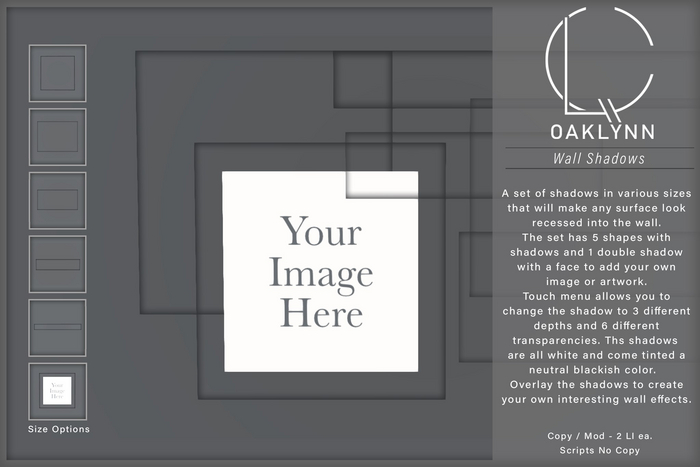
Wall shadows come in varying shapes and sizes.
The 5 shadow boxes can be resized, but the shadow may stretch if you don't resize them uniformly.
Same with the Image Shadow.
You have 3 shadow depth options & 6 shadow transparency options.
The options for each are accessible via a touch menu.
You can also change the shadow tint and transparency via the edit menu to better match your wall.
For best results the shadow should be tinted a darker shade of the color of the wall or surface behind it.
Instructions for manual editing below.
Use the varying shapes, overlapping them, adding glow or changing the shadow color, to create a unique collage of shadows to achieve your own personalized artistic piece on your wall.
They can also be used to frame a large space or create the illusion of depth on a surface.
Each frame is only 1 land impact.
They are copy / mod.
The script is copy only.
-------------------------------
EDITING INSTRUCTIONS:
-------------------------------
For best results the color of the shadow should be a darker shade of the color behind it.
This will give you a realistic shadow effect as shadows are not actually black but rather a darker shade of whatever color they fall upon.
The edit the color simply right click on the object and select edit.
About 1/3 of the way down the menu that opens click on the Texture tab, the 4th tab from the left.
On the top left of the texture tab's window, you will see a rectangular color box.
Click the box and a color picker will open up.
Make sure you have the Apply Now tick box checked. it is in the lower left of the color picker window.
Now select a color close to your wall color and drag the saturation arrow down to make the color darker.
Play with color selection, saturation and transparency until you are happy with the effect.
Although there are transparency buttons on the menu, you may want to select your own.
The transparency box is next to the color box.
The higher the transparency number the more transparent your shadow will be.
When you are happy with the way it looks make sure to hit the OK button on the color picker window and close the edit window.
Thank you and happy SLing,
Bren Kenin
Voir l'article dans Second Life


