![[ Renari ] - Nanoh - Wings](https://slm-assets.secondlife.com/assets/1323246/lightbox/24161c51a7a75548262199a02746e82f.jpg?1277219311)

SUPPORT FOR THIS PRODUCT HAS BEEN DISCONTINUED.
Item is a legacy product, and is sold as-is.
--
EDIT: Now Fully Modifiable!
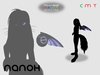
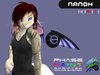
The Nanoh is a simple and stylish accessory for those who want to add a small touch of Cyber style to thier life. The Nanoh is the first (Rentech) product featuring an innovative color change system, Phase Paint, which allows the user to change their wings to ANY color combination remotely.
-------------------------------------------------------------------------------------
Nanoh features:
- Stylish and Low-Prim Design (20 prims total, 10 per wing)
- Full and Balanced Lighting Effects and Glow
- Phase Paint - Scripted Color Change System
- Wings are COPY / MOD / NO TRANS
(Wings may need to be positioned to fit some avatars. If you need help understanding how avatar attachments work, consult Torley Linden's video tutorials: http://www.youtube.com/watch?v=iq0p7tw08rI )
-------------------------------------------------------------------------------------
Each Nanoh package includes:
- 2 Nanoh Wings (w/ Phase Paint)
- 1 Phase Paint Widget
-------------------------------------------------------------------------------------
Using your Nanoh wings:
1. Rez your Nanoh Box somewhere in world.
2. Click the package to recieve the contents
3. Click 'keep' and look for a folder named ' Nanoh Box' in your inventory.
4. Wear both Nanoh left and right wings. (Default attach to the left/right pec)
5. Enjoy!
-------------------------------------------------------------------------------------
Customising your Nanoh wings using Phase Paint:
NOTE: Using Phase Paint requires some experiance in editing linked objects/prims.
1. Wear your Nanoh wings.
2. Rez your Phase Paint Widget somewhere inworld or Wear it from inventory.
3. Right click the widget and choose 'edit' from the pie menu.
4. Check the "Edit linked parts" option.
5. Select the part you would like to recolor. Consult the color guide for corresponding parts.
6. Select the Texture tab in the build menu. (if you don't see it, click the "More >>" button)
7. Select Color and choose the desired color then click "Select".
8. Click the recolored part to send the color data to your wings.
(Clicking the two grey buttons on the outer ring will change between gloss and flat metal paints)
- To see gloss (shiny) or light effects, you must have "Bump Mapping and Shiny" and "Nearby local lights" graphic options enabled in Second Life.
----
Tips:
- Keep a backup copies of your Phase Paint Widget in your inventory for safety.
- The Phase Paint Widget will change any of your Phase Paint enabled products by (Rentech).
-------------------------------------------------------------------------------------
If you have any questions or comments, contact Rena Kuhn in game.
-------------------------------------------------------------------------------------
See item in Second Life

