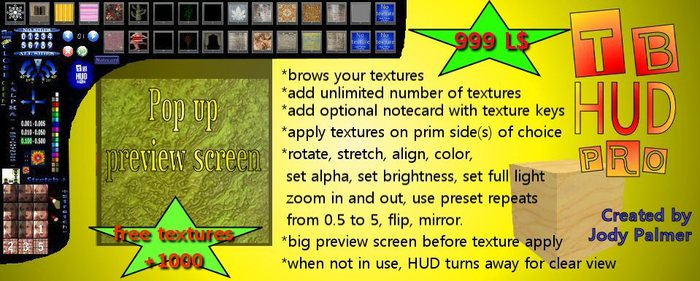

TBHUD - The best way to texturize your prims.
============================
IMPORTANT !!!
This version of the TBHUD needs to be used on a higher resolution screen of 1024 x 768 or higher
Enter the group named "TBHUD" to stay tuned. Free signup.
CONTENTS
********
-Why make a texture browser HUD
-Possibilities with TBHUD
-How to activate a prim
-Deleting the prim script
-TBHUD hiding
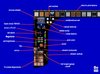
-Which side is what
-TBHUD PRO - What's new ....
Why make a texture browser HUD
====================
I am playing second for more than a year now. Started out with building items, making textures and finaly scripting.
In the progress it costed me every time a while to align textures, find the right ones in my inventory (hard with names like "crate01255"), rotate them and so on.
One day i found out about the tFinder HUD. One of the greatest tools in SL for builders. You can get free textures trought the HUD, simply by clicking it and say in chat what you need.
If you use it a lot like i do, you collect a very wide range of textures, but still with the same problem, difficult names, names that could mean anything and so on. It would be better to see the texture instead of clicking every texture over and over again, till you find the right one. So i came up with the idea of the TBHUD. TB stands for Texture Browser. I lauched the idea in the tFinder group and asked what people tought about it. The idea was ok, bu why would someone put a script in a prim just to give it a texture you choose from the TBHUD. The TBHUD should do much more then just place a texture on a prim. And it does !!!
POSSIBILITIES WITH TBHUD : ���´�¯�¿�½�¯�¿�½�¯�¿�½
=================
With the TBHUD you can perform following actions :
* Choose the right texture from one of the 16 texture screens, browse the several sets :
You load the HUD with the textures you want or use the most. Do this by rightclicking the TBHUD and choose EDIT. Then go to the CONTENT tab and just drag the wanted texture in the inventory of the TBHUD. Once you did this, you need to load the textures in the HUD. Do this by pushing the green button with the round arrow. The textures will load in to the TBHUD database.
Tip : The database is limited in memory. To be able to add a huge amount of textures, i suggest you name the texture with a very short name, since the names are saved in the data registers, not the keys. The shorter your texture name, the less memory it uses, the more textures you can load. : Load textures : ���´�¯�¿�½�¯�¿�½�¯�¿�½
In order to see all textures, you can click the blue arrow buttons. The digital number inbetween tells you what set of 16 textures you are viewing.
* Choose the side or sides where the texture or action should take place.
You can pick sides from 0 to 9, just by clicking them. They will glow green when active. There is a ALL SIDES and NO SIDES button to either activate or deactivate all buttons at once. When a script in the destination prim is activated, the prim will ask the TBHUD what sides are active.
Tip : In order to let the TBHUD work faster, make sure the sides you dont see or use are not activated. The TBHUD will perform your choosen actions side per side. Some actions take a little time to perform (LSL limitation), and therefor if they are performed on sides you dont even see, it is a waste of your time.
* Choose texture rotation (pick 1������°, 10������° or 45������°), click it several times if nessecary
You can choose one of the six curved arrows, three in every direction. The arrows have the preset value of 1������°, 10������° or 45 ������°. You can click them as much as you want, the action will perform every time. If you want to set the rotation to 0������° again, just click the 0������° button inbetween the arrows (blue triangle)
* Move the texture up, down, left or right
Well, this speaks for itself, you move the texture to left, right, up or down by clicking the according blue arrows. The magnitude of the replacement is choosen under the arrows. You can choose between 0.001 - 0.005 - 0.010 - 0.050 - 0.100 and 0.500. This magnituse is used also in following options. Click the magnitude you choose, it will highlite green like the side buttons. When a prim script is activated, the magnitude will be automaticly set to 0.100.
* Choose out of 32 different colors to set
Easy preset color picker. Choose one of the 32 preset colors, the activated side will get that color. Easy and simple.
* Increase or decrease alpha of a choosen side
Works with the same magnitude as already discribed. Choose the magnituse and click "-" to mage the side more transparant and "+" to make it more solid. The magnitude here isn't the real value, but will be used as a percentage. a magnitude of 1 = 100 %. The highest magnitude is 0.500 howefer, s


