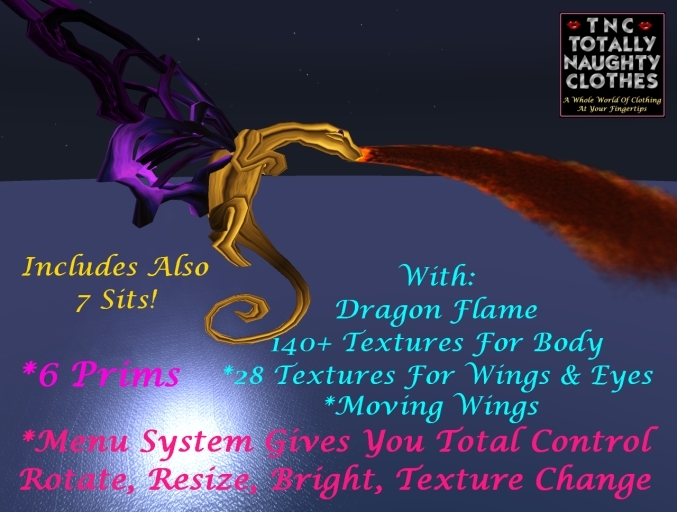

If you wish to see a Demo of any of the statues use the See Item In Second Life or TP To:
http://maps.secondlife.com/secondlife/Raziel/89/133/23
Help & Instructions:
The Menu will ONLY respond to the Owner of the object to avoid people on your Sim or in your club or wherever you put this down to change your settings.
All Menus have the option of returning to the Main Menu. Click "Exit" if you are done with the Menu System.
The Menu offers the following options:
1. Rotate - Will open a sub-menu "On" & "Off". Rotate is very slow and subtle. You can turn it on or off at any time.
2. Bright - This changes the Full-Bright on the Texture Option - On or Off.
3. Textures - Allows you to switch between textures. Depending on the statue you purchased there are at a minimum 56 Texture options to chose from! Some are multi-color and offer various effects in the Statue itself. With all these textures you can switch between them and find exactly the color and effect you are looking for to match your ambiance.
*On The Harp Only the statue will change textures NOT the Golden Harp Strings.
4. Help - Will give you the most updated Help Notecard.
5. Resize - Click on this to Resize your Statue to the size you wish.
6. Reset Scripts - Should really never be needed unless you see the menu is not responding in the correct way. I always try to put this into my objects. - Actually since the item is COPY if you cannot access a menu, just delete the statue and put out a new copy.
7. If you wish to make a copy please just Rez from your inventory. Do NOT SHIFT-COPY as the menu system will no longer function correctly.
***************
*The Following is ONLY For The "TNC Magical Dragon":
1. The "TNC Magical Dragon" also contains 140+ Body textures as do many of the Statues.
2. In Addition on the the Texture Menu you will see an addition for "Wings&Eyes" which will change the textures on the Wings & Eyes. (They will match up.)
3. "Dragon Fire" will start a cycle of 30 Seconds Fire On and Fire Off. It begins with Fire OFF so you will have to be patient for 30 seconds for it to begin the Dragon Flame cycle.
4. "Wings Menu" will give you On or Off. "On" will cause the Dragon to move 3 meters up and begin to move his/her wings. (Obviously if you want the Dragon on the ground just edit and put her back on the ground - but when you turn it off the Dragon will try to move 3 meters down, so beware.)
5. To Sit On The Dragon (with 7 Different Positions) do as follows:
Right Click ---> Sit (Right Click on the Neck as it seems to work best in most cases and will sit you correctly immediately. However if you see the first time you sit you are a bit off follow below)
Once you are seated if you click the Dragon again you will get 2 Menus appearing. * (this will only happen if you are seated on the Dragon)
A. The Normal Menu
B. Underneath it is the Sit Menu. To get to the Sit Menu just click Ignore or Exit on the Main Menu, then you can change sitting animations, adjust the seat etc.
C. If you wish to change something from the Main Menu then just do that while sitting, and then click "Ignore" on the Sit Menu when you are done (or else play around with the Sit Menu as well.)
All Other options Bright (though in the Unicorn textures I do not suggest Bright On, looks much better with it Off in most of them but try it), Rotate, Resize, Reset are all there and work.
Once again especially in the Unicorn - Do NOT SHIFT-COPY as the menu system will no longer function correctly. Rez another copy from your inventory if you want more than one Dragon out!
That is it. Simple and easy to use and a great plus to any Dance, Club, Sim setting. And since they are copy you can put out as many as you like!
Enjoy :)
TNC - Totally Naughty Clothes
See item in Second Life- Menu Operated
- Rotate, Brightness, Textures & Resize All Included


