
----------------
INCLUDED:
----------------
1 Frame
1 INFO Notecard
1 AD
---------------------
DESCRIPTION:
---------------------
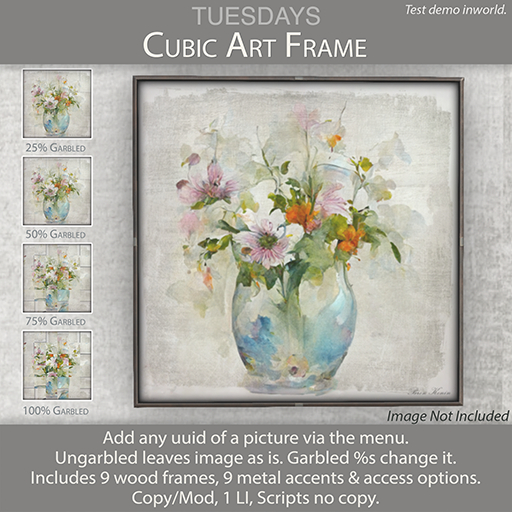
This single frame can do so much. Not only does it have a texture change menu that offers 9 wood frame options and 9 metal accent options, but you can set the access as well.
But wait.... there's more.
Add your own image via the menu by entering the uuid of the image.
The image will show normally. But want to have some fun?
Click one of the percentages and watch the image morph more and more the higher the percentage.
Make your own art.
There is an inner image shadow built into the frame so any image you add will look as if it was baked for the frame.
The shadows are white and tintable so you can tint them to better match whatever surface they are placed against. The come tinted a neutral blackish color. More about shadows below.
--------------------------
TEXTURES MENU
--------------------------
1 Click the frame.
2 Select Access by clicking one of the radio buttons at the top.
3 Click the New Photo button and enter the uuid of the photo you want to display.
4 Click the Woods button to access the frame options.
5 Click the back arrow button.
6 Click the Metals button to select a metal accent.
7 Click the back arrow button.
8 Now you can leave the frame and image as is or start making some interesting art with it by clicking one of the Garbled percentages. Start at 25% and go up until you fine one you like.
9 You can always select the Ungarbled button to change it back to normal.


