![[eXe] Rental Server multiple Terminal and shops office system box](https://slm-assets.secondlife.com/assets/37961018/lightbox/RENTAL%20TERMINAL%20SERVER%20main.jpg?1766915761)
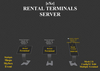


[eXe] Rental Server multiple Terminals and Shops
Scripts: Copy
Server: Copy / Mod
Terminal: Copy / Mod
To rent from a single location within the office, we use multiple terminals under server control.
SERVER
When the server panel is brought out and rezzed
1- We will edit the config notecard.
2- Name the shops and houses you have created, and enter these names into the configuration notecard.
We will use the $ sign to separate them, i.e. (name$primlimit$price)
SkyHome01 (SkyHome01$100$300)
CornerShop02 (CornerShop02$150$350)
Home03 (Home03$50$100)
Home19
Shop36
.
.
Group
manager
graceperiod
LM name
Info name
email
partner key / name / split
After configuration is complete, the server will reset and generate a unique channel number to be written in the description section of the server panel. Write this number in the description section of the terminal.
You will also see a local message that the owner can see.
TEXTURES CHANNEL = -1976644414 // ADD TEXTURE PANEL DESC
TERMINAL CHANNEL = -1976644416 // ADD TERMINAL PANEL DESC
Write the texture channel number in the description section of the panel you will place next to the leased space and reset it.
TERMINAL
If you are operating a high-volume SIM or parcel service, you can place as many terminals as you need. Your tenants can make payments without waiting in line.
Reset the terminals by adding the channel number from the description section of the server panel to the description section of each terminal.
The terminals will synchronize with the server.
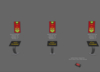
TEXTURE and TP PANEL
It is up to you whether or not to use these panels.
Place these panels in a suitable and visible location in stores and homes.
Give them a name to be added to the server. (Shop36)
Take a sign from the office terminal and place it inside the Panel and reset it.
Panel name: Name of the rented space
Panel description: Texture channel number
Only the space name appears as hovertext on the panel.
Shop36
Customers can go to the office by clicking on the panel in the location they want to rent and complete the rental process by selecting the same store name from the terminal.
Once the rental process is complete, they will click on the teleportation panel next to the terminal, select the name of the location they rented, and be teleported there.
Take an LM from the door or inside of each rental area and rename it. Place these LMs inside the teleportation panel next to the terminal.
The panel's texture will change from "available" to "rented".
HELPER PANEL
There is a "helper panel". You can place this panel on top of the terminals. Add the UUIDkeys and names of all your managers to the configuration notcard inside.
When someone experiencing a problem or seeking a solution taps this panel, types a message, and sends it, all managers whose names appear in the configuration notecart will receive the message. Available managers will use the links in the message to contact the relevant customer via instant messaging and work to find a solution. If they cannot resolve the issue via instant messaging, they will click the link to go to the panel where the message was sent and schedule a face-to-face meeting.
You can come to our store to see, examine and test.
Ver el artículo en Second Life
![[eXe] Rental System BOX (M3) UNPACK RentBox for Rent Rental Rentals](https://slm-assets.secondlife.com/assets/36869466/view_small/%5BeXe%5D%20Rental%20System%20%28M3%29%20DualPanel.jpg?1746551357)
![[eXe] Rental System box (m5) Sticks RentBox for Rent rentals](https://slm-assets.secondlife.com/assets/36409539/view_small/m5%20stick%20tm%2056.jpg?1738348376)
![[eXe] AD-BOARD's ( SlideShow + Split ) Advertising Adboard ad board rental system RentBox for Rent](https://slm-assets.secondlife.com/assets/34864808/view_small/adboards.jpg?1710272804)
![[eXe] Rental System Box (m5) Single - double sided RentBox for Rent Rental Rentals](https://slm-assets.secondlife.com/assets/36511979/view_small/Rental%20System%20Box%20%28m5%29%20double%20sided.jpg?1740070832)
![[eXe] Rental System (m5) Time meter (BOX) RentBox for Rent Rental Rentals](https://slm-assets.secondlife.com/assets/35714654/view_small/rental%20system%20tm%20box.jpg?1725805093)
![[eXe] Rental System Box 1 Panel 12 shops for rent rentbox Rental Rentals Office](https://slm-assets.secondlife.com/assets/36988187/view_small/12%20shop%20rent.jpg?1748774191)
![[eXe] Rental System Box 1 Panel Multiple shops shop for rent rentbox Rental Rentals office](https://slm-assets.secondlife.com/assets/36981302/view_small/Rental%20System%20%28Multiple%20Shops%29.jpg?1748630125)
![[eXe] Rental System BOX (M6) Panel Rentbox for Rent Rental Rentals Office](https://slm-assets.secondlife.com/assets/37032149/view_small/rental%20system%201%20panel%208%20shop.jpg?1749585872)