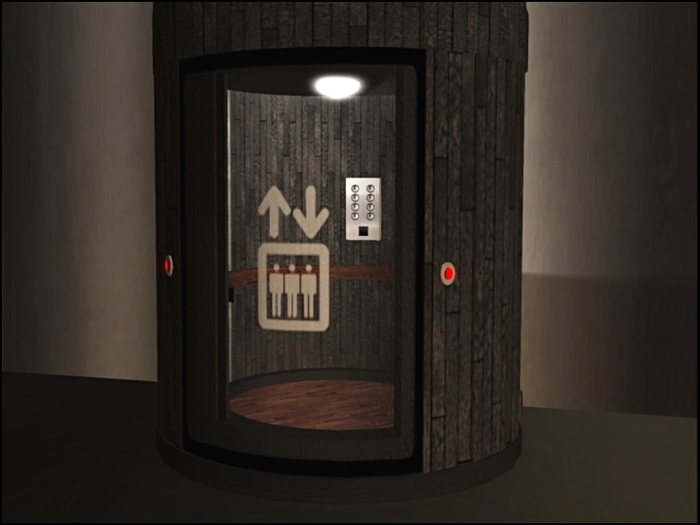

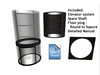
Starting a brand new line of modern elevators. This wood inlaid and stylish design will be an eye catcher in any store or home.
A complete refinement my elevator system, this is even easier to set up and smoother operation with less lag. Taking advantage of the round modern shape this new lift can turn to any direction allowing for the more flexible in floor lay outs. The glass panels allow you to watch the elevator twist as it slides smoothly to the next floor.
I’m sure that you will find this elevator to be a quality product and to allow you to confirm if this is the right elevator for you I post as much of my manual as I can fit on the market.
Prim Usage:
8 prims for the Lift, 8 for the base, 7 prims for each additional floor, 1 prims for cap.
Total prims by number of Floors
2 floors = 24prims
3 floors = 31prims
4 floors = 38prims
5 floors = 45prims
and so on...
Size:
The Base is 5 meters by 5 meters found, the height depends on distances of floors. Lift needs a minimum of 4.5 meters by 4.5 meters round for to operate. This give the lift room to move as it is a physical move.
Floor Limit:
The allowed number for floors is from 2 to 12.
Height Limits:
It is suggested that you do not have floors less than 5 meters apart to ensure correct operation. Max Distance between 2 floors can but up to 32 meters. If it is more than 32 meters the appearance of the shaft may not connect between floors but functionality will still work. In theory the distance from bottom floor to the Top Floor is only limited by the sim height. This has been tested to 1,000 meters. Travel is broking into 20 meter units to prevent lag causing the avator falling through the floor of the lift.
Build instructions:
- Set the Base -
1. Rez the Elevator Base Section at the bottom floor & position it.
2. Close Build window
3. Click on the bottom prim of the elevator base.
4. Select the Name button if you wish to name the bottom floor
- Setting Floor Heights -
1. Click on the bottom prim of the elevator base and select Place Floor.
This will Rez a Floor Marker piece.
2. Name the Floor (optional)
1. Click on the bottom prim of the Floor Marker Section
2. Say name if you wish to name the floor in local chat
3. Move the Floor Marker up to your Floor. This is best done by using the move menu on the Floor Marker menu.
Advanced builders can select move from SL's build menu to move the Floor Marker Sections up and down. However, the built-in Move option auto-aligns the prims.
4. Rotate the Floor Section. This is best done by the rotate menu on the Floor Section menu.
Advanced builders can select rotate from the Build menu to move the Floor Marker Section up and down. Modern tube design allowing for any different of the elevator door.
5. Repeat Steps 1 through 4 for each floor (12 floor Limit)
NOTE: The Shaft will built itself to fill in any gaps! These means you only have to rez Floor Sections only for the floors, ** NOT ** to make a continuous shaft.
- Finalize the Build -
1. Click on the bottom prim of the elevator base and select Build
!!! Do not click on any part of the Elevator while it builds!!!
NOTE: This will LOCK the Menu!
*** If you need to make any adjustments, or you need to re-do it, click the RESET button on the right hand side of the base. ***
2. Wait for Elevator to finish building and state that it is ready (Takes 15 to 20 seconds)
3. Enjoy!
Operating Instructions:
1. Click on the call button at the floor you are on to call the elevator to you
2. When door opens step inside
3. Click on the control panel
4. Selector your floor from the popup menu
5. Lift will move to selected floor.
6. Wait for Door to open
Floor Naming:
You are able to set your own names for each floor. If you do not want to name all or any of the floors, The elevator will auto generate the floor name/number based off of its position. Floor 1 being at the bottom and counting up with each higher floor. Floor Names are limited to 12 character or less.
Position:
The elevator shaft must be keep in prefect alignment to ensure smooth running of your elevator. Once you have the base set out at the bottom floor it is suggested to not move the elevator or any of its parts. Each floor will be provided with its own menu system to allow you to position the floor with fast and fine alignment.
Rotation:
Each floor can open to any face but must be kept in a vertical alignment. The lift will rotate as it travels to the new floor so that the doors align. You can use the menu system for each floor during the build process to rotate to the main directions.
Moving or Changing a Built Elevator:
It is not suggested that you change or move any part of the elevator after it has run the build function. If you need to do so, reset the elevator, move to the new position and go through the setup again.
- No not Cards to Program. Easy Pop up menu setup
- Operate 2 or more Elevators next to each other with out interference
- Flexible floor heights, self building shaft (up to 12 floors )
- Auto Floor Numbering. Custom Floor Labeling allowed
- Smooth Physical movement allowing for more than 1 rider


nice looking but
set up is nice,easy and it looks good.
is not much of an Elevator, be that i tried 6 times setting it up, the lift would make it up the shaft once, and then fail to get back down the shaft ending up at some off angle stuck and juddering about, sorry but look else where I can't recomend this one
bought it in 2017 and its still awesome
i cant even describe how easy the setup is ..
it is really moving a part and pushing some buttons!
no nc config, nothig!
and it works with high buildings too!
tried four times now
it all sets ups fine, but when you start to change texture faces things go haywire .. prim count goes way up into the hundreds even tho i didn't change anything thing about the physics shape.. no stretching even.. just rnew textures .. this is an issue with some cut and hollow prims witch this seems to be fully made out of.. also on one of my 4 tries at setting this up it became draggable by mouse as is the whole thing went physical on me .. this dont seem stable at all i have a mesh elevator that works great but i wanted a round one.. guess this one isnt gonna cut it, also the pack panel doesn't get any textures for me like on the ad photos, it just stays white .. maybe the wrong version was posted to market ??


